
To manage multiple WordPress sites from one dashboard, you connect every site to one control screen. That screen is the network admin of WordPress Multisite, an external hub that reaches each installation through a connector plugin, or a content workspace that publishes posts. Ten installations mean ten passwords, ten update screens and ten places for something to go wrong. Which fix fits depends on which of the three you need.
How to Manage Multiple WordPress Sites From One Dashboard: What It Does
The short answer: connect your sites to one screen
You manage multiple WordPress sites from one dashboard by installing a small connector plugin on each installation, or by running them as one WordPress Multisite network, and then working from a single screen. From there you run updates, check security and safety copies, and open any admin area without typing its password again.
What a dashboard controls and what it leaves on each site
A WordPress management dashboard handles the jobs that repeat across websites: updates, backups, uptime checks, malware scans and reports. Content, design, menus and users stay on each one. The hub works as remote hands, so to edit a page you still open that installation’s own WordPress dashboard. Routine maintenance, such as a nightly copy, can be automated.
The cost of logging into every site by hand
Manual logins scale badly. With eight sites, one update round means eight sign-ins and eight chances to forget one. The one you skip is often running an outdated form plugin, exactly the gap attackers look for. Clients also want a monthly summary, and it can take longer than the work itself to manage multiple WordPress installations this way.
The Three Kinds of Dashboard: Multisite, External Tools and Content Workspaces
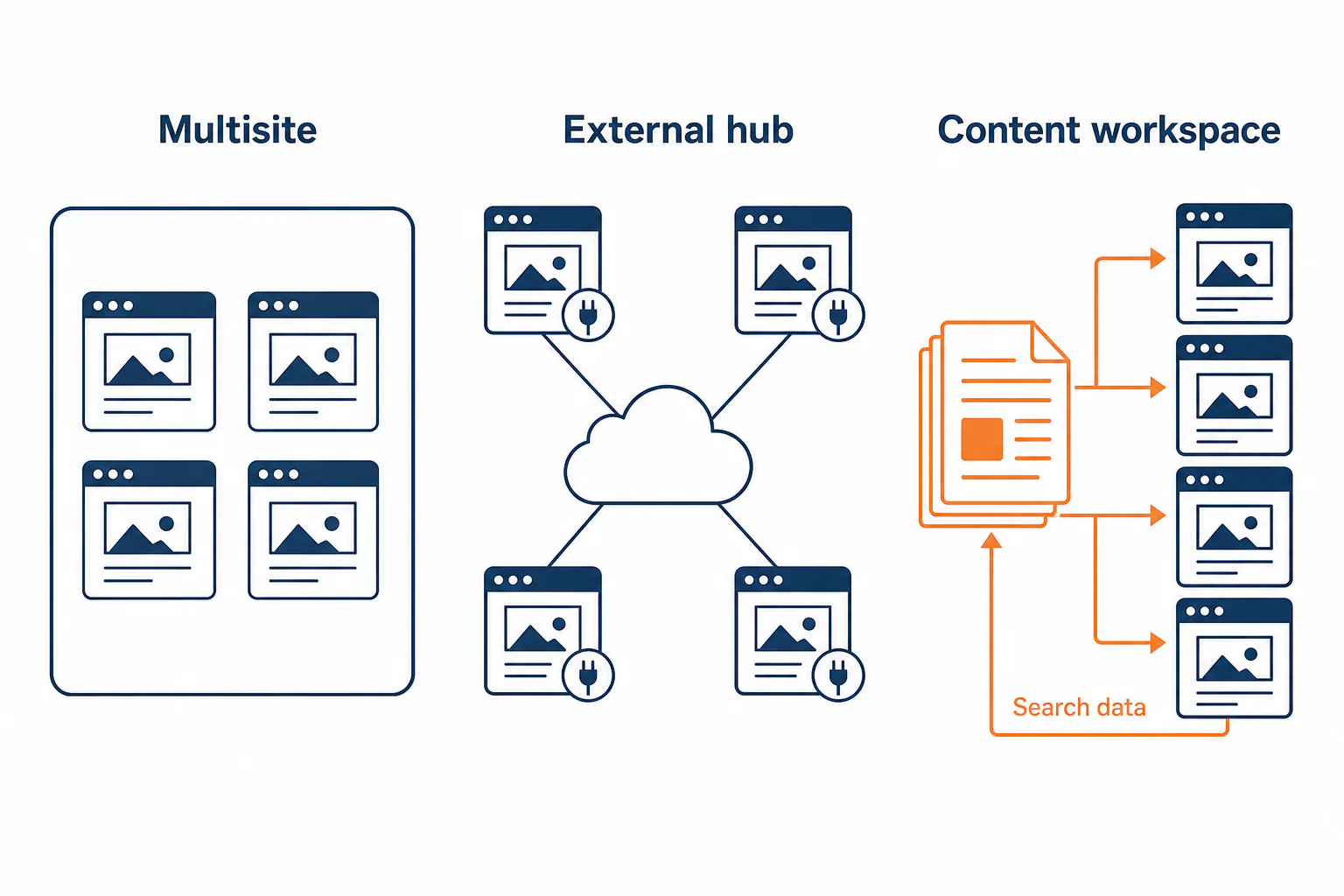
“One dashboard” covers three different setups, and each solves a different problem.
WordPress Multisite: one install, one network admin
WordPress Multisite turns one install into a network sharing one database, one set of files and one network admin. The super admin installs themes and plugins once, then enables them per site. This suits related properties on one server account, but separate client projects poorly: removing one later is real work, and one faulty plugin can affect the whole network.
External management tools such as ManageWP, MainWP, InfiniteWP and WP Umbrella
External management tools keep your WordPress installations separate. Each site gets a connector, a small management plugin, that reports to a central hub. ManageWP, WP Umbrella and The Hub by WPMUDEV run that hub as a cloud service. MainWP is self-hosted, as is InfiniteWP. Solid Central and CMS Commander, plus WP Remote, UpdraftCentral and GoDaddy Pro, belong to the same category.
A content workspace for writing, publishing and reporting
The third kind sits above maintenance. A content workspace plans keywords, drafts articles, publishes them and brings search data back. RankFlow covers keyword research, content plans, AI-assisted writing, WordPress publishing and Search Console reporting, so it works alongside a maintenance hub.
How to Manage Many WordPress Sites: Tasks a Dashboard Takes Over
To manage multiple WordPress sites without daily logins, hand three jobs to the hub: updates, safety checks and client access. Together they make up most routine upkeep.
Bulk updates for core, plugins and themes
Bulk updates are the main reason people connect their installations. The hub lists every pending one and you apply them in one pass or one at a time. Automate minor releases, approve major ones by hand, and hold back anything that broke before, such as a page builder, until tested on staging.
Backups, security scans and uptime checks
Hubs schedule off-site copies, scan for malware and vulnerable plugins, and ping each installation for uptime. When one goes down at 2 a.m., the alert reaches you, not your client’s customers. Check how long copies are kept, since retention differs between free and paid plans.
One-click login and client reporting
One-click login opens any site’s WordPress dashboard straight from the hub, so passwords no longer travel by email. Reporting features turn the month’s updates, backups and scan results into a branded summary for clients. That report is what makes maintenance visible, and visible work is easier to bill.
Multi-Site SEO Content Management From One Place
Multi-site SEO content management means planning, writing, publishing and measuring articles for every property from one workspace. Most maintenance hubs do not touch this layer at all.
Why maintenance tools stop at the content layer
Maintenance tools look at the health of the install: versions, backups, config, response time. They don’t know which keywords a site targets or which article lost clicks. Multisite doesn’t know either, because a network admin shares code, not a content plan. That work ends up in spreadsheets.
Keyword plans, drafts and publishing to each site over the WordPress REST API
A content workspace keeps one content plan per site and sends finished articles through the WordPress REST API, authenticating with an application password rather than your admin login. For an agency running several client blogs, this ends copy-pasting. In RankFlow, articles are written from each blog’s content profile. You decide what gets published, and it lives in your own WordPress.
Scheduling posts and reading Search Console data per site
Each article can go to a site as a draft for review, as a scheduled post with a date, or live immediately. After publishing, connect each property’s Search Console entry so clicks and impressions come back per article. RankFlow labels numbers as measured, calculated or estimated, so you can tell Google data from projections.
Connecting Five Sites to One Dashboard: A Worked Example
First, set up a clean WordPress installation with no extra plugins or themes as the hub if you use a self-hosted tool such as MainWP, and keep client sites separate from it.
This is an illustrative setup: a freelancer connects five WordPress websites, three client sites and two of her own, to an external hub such as ManageWP or MainWP.
What to prepare before you connect
Before installing anything, gather the following for each site:
- An administrator account in your own name, not a shared client login.
- A fresh backup, taken before the connector goes on.
- The host, PHP version, active themes and plugins, noted in a short record.
- A note of any security plugin or firewall that may block the connector.
Connecting each site and grouping them
The connection itself follows the same steps on every site:
- Install the connector plugin on the first site and copy its connection key.
- Add it in the hub, paste the key and wait for the first sync.
- Repeat for the other four websites.
- Tag them into groups, such as “Clients” and “Own”, so a bulk action reaches only the group you pick.
- Set remote backups and an update schedule for each group.
Checking that every site reports back
Confirm that each one shows the correct core version, plugin list and last backup date. Then run one harmless test, such as a plugin update on one of your own installations. If a connection turns “disconnected” later, the cause is often a deactivated connector or a firewall rule.
Honest Downsides of a Single Dashboard
A central hub saves hours, and it also concentrates risk in a few places you should plan for.
One login that reaches every site
Anyone who gets into your hub account gets into every connected site. Turn on two-factor authentication, give each team member their own account with a limited role, and remove access the day someone leaves.
Data passing through a third-party service
With a cloud hub, site data and backup files pass through, or are stored by, another company. For clients with strict privacy requirements, a self-hosted hub on your own server keeps that data under your control, at the price of looking after the hub yourself.
Plugin conflicts and connector failures
Management plugins are more code to update, and they can clash with security plugins, caching or a host’s firewall. Blocked REST requests can break the connection silently. Bulk updates carry a second risk: one bad release lands everywhere, so stagger rollouts.
The downside of WordPress itself at scale
The downside of WordPress itself is upkeep: a single WordPress install already needs regular maintenance, and every extra plugin adds one more thing to update and one more possible weakness. A hub makes that work faster without removing it. With dozens of near-identical sites, the honest fix may be fewer plugins or one Multisite network.
The biggest downside of using WordPress is that you own the maintenance. Core, themes and plugins need regular updates, backups and security checks, and a neglected site becomes an easy target. Plugin sprawl can also slow pages down. Hosting, caching and security choices all rest on you, which takes time that managed website builders handle for their customers.
Which Dashboard Fits You: Freelancer, Agency or Network Owner
A decision rule: Multisite or external dashboard
Before you manage multiple WordPress sites from one dashboard, answer three questions: who owns them, where they are hosted and whether they need the same plugins. Choose Multisite if you own every one and they share plugins on one account. Choose an external hub if they belong to clients or need different setups. Add a content workspace if publishing is part of the job.
| Multisite | External hub | Content workspace | |
|---|---|---|---|
| Best when | You own all sites | Sites belong to clients | You publish articles regularly |
| How it connects | One shared install | Connector on separate WordPress installations | WordPress REST API |
| Handles | Shared code and users | Updates, backups, scans | Plans, drafts, publishing, search data |
| Moving a site out | Hard | Disconnect the connector | Articles stay on the site |
Freelancers with a handful of client sites
To manage multiple WordPress websites as a freelancer with a few clients, start with a cloud hub that has a free tier, such as ManageWP, and pay for add-ons like extra backups only where needed. Check current pricing first.
Agencies with client-owned sites
An agency needs separation: each client’s site stays its own WordPress installation with the client’s host. Look for team roles, client groups and white-label reports. MainWP suits teams that want the hub on infrastructure they run themselves; ManageWP and WP Umbrella suit teams that would rather not maintain a hub at all.
Owners of a multi-site network
If you run related properties under one brand, WordPress Multisite lets you manage multiple WordPress sites from one dashboard with shared themes, one user login and one network update. Keep an external tool for backups and uptime, since core includes neither. If content eats your week, RankFlow brings research, publishing and measurement into one workspace.
Frequently Asked Questions
Should I enable multisite on WordPress?
Should I enable multisite on WordPress?
Only if you own all the sites and want them to share themes, plugins and users. You enable it by adding a line to wp-config.php and running Network Setup under Tools, but reversing the change is difficult. For separate client websites, keep individual WordPress installations and connect them to an external hub instead.
Is ManageWP free to use?
Is ManageWP free to use?
ManageWP offers a free core plan that covers basics such as one-click access and bulk updates. Features like more frequent backups, monitoring and white-label reports are paid add-ons charged per site. Plans and prices change, so check the current pricing page before you build your routine around it.
Is managing 10 or more client websites reasonable?
Is managing 10 or more client websites reasonable?
Yes, with a hub and a fixed routine: a weekly update window, automated backups and one monthly report for all clients. Updates stop being the bottleneck at that point. What limits you instead is support requests and content work, so plan time for those rather than for logging in.
Can I update all my WordPress sites at once?
Can I update all my WordPress sites at once?
Yes. Multisite updates core for the whole network in one step, and external tools apply core, plugin and theme updates across every connected site. Updating everything at once is easy; the risk is doing it without first testing on staging, because one bad release then breaks every site together.
How many pages can you create on a WordPress website?
How many pages can you create on a WordPress website?
WordPress itself sets no limit on pages or posts. The practical ceiling comes from your hosting: database size, memory and how quickly the server answers queries. Large content sites run well with caching and a capable host, so plan your infrastructure around traffic and content volume rather than page count.